
Street
THIS IS THE WAY

Explore our collection of iconic skateboard tricks captured in stunning detail. From street to vert, these moves define the culture.


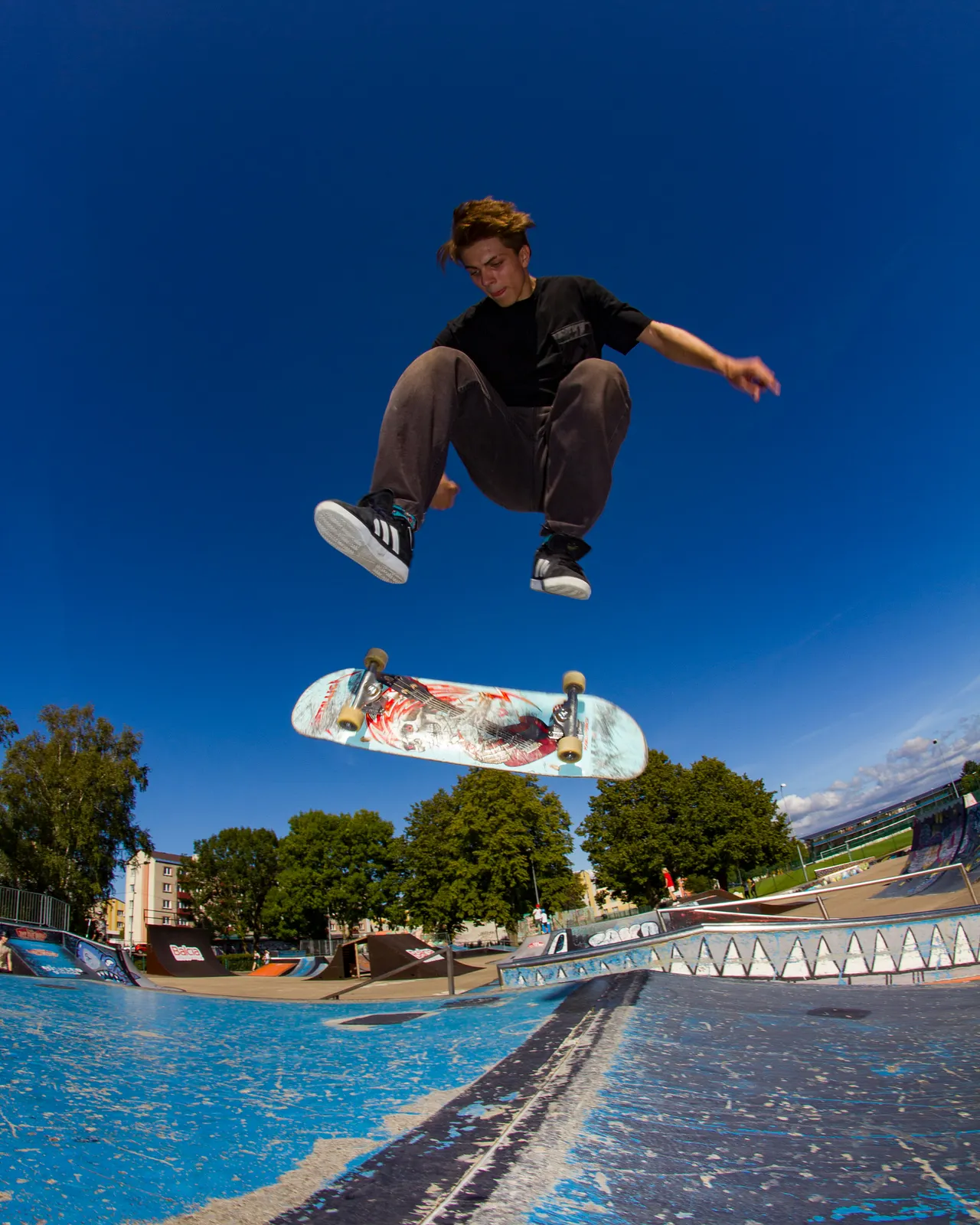
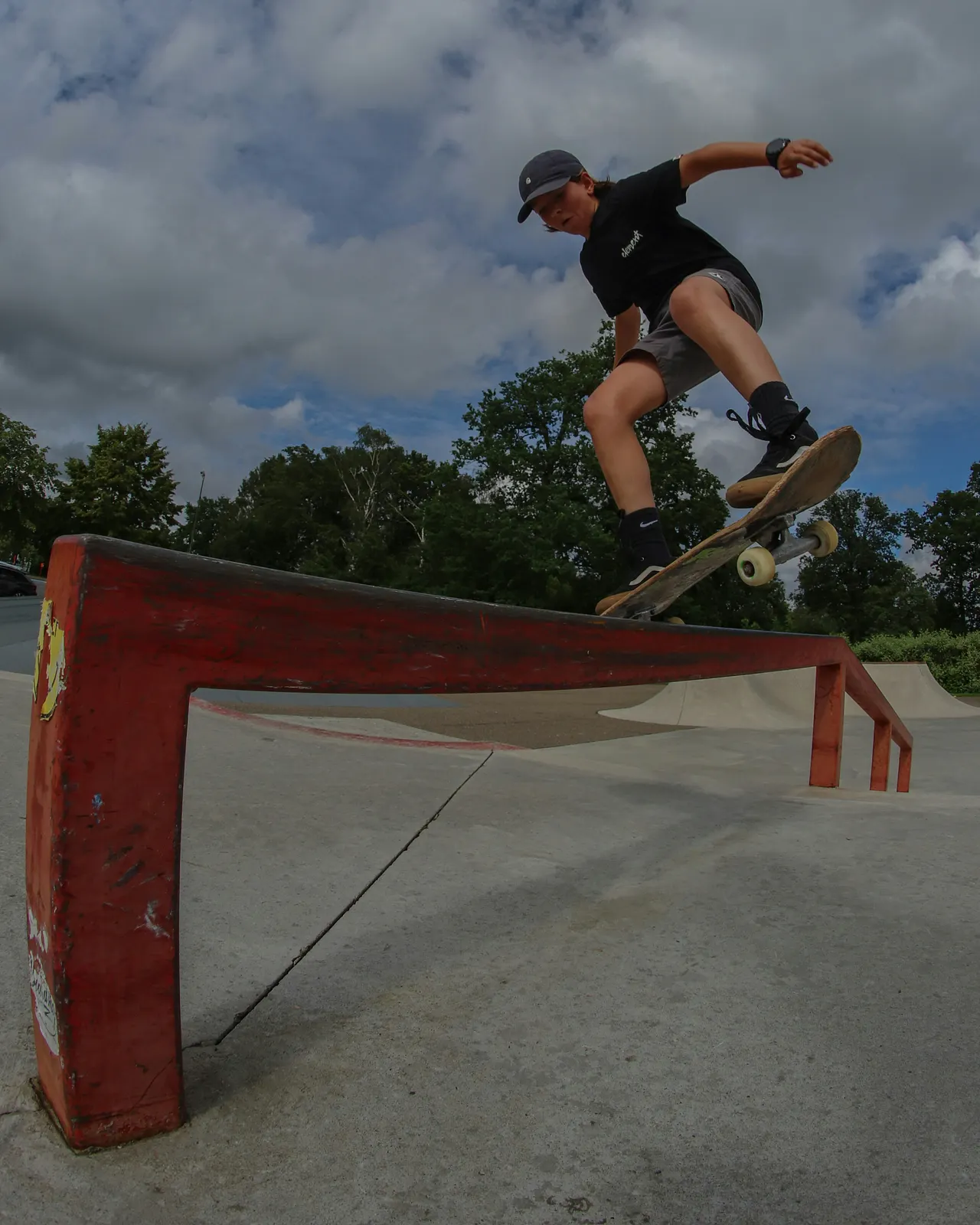

A curated collection of images capturing the essence of our brand and the stories we tell.










A few advice that will help you through life. And remember, no one has it all figured out.
Take some risks
Step up when times are the toughest
Face down the bullies
Never ever give up

Need some pointers?
Hit the Play button next to the publish button in the top right corner of your screen to interact with the FAQ
To create a new page in Strife, go to the Content section in the left-hand menu and click Compose in the upper right corner. Choose a template, give your page a name, and select its Origin. You can then start adding chapters and modules directly in the visual editor — with live preview updates as you build.
The website pages are found under “Content” out in the left panel”. From the content list you can filter your website content in multiple way, making it quick and easy to find and manage the content you’re looking for. See the “Control and navigation” section at the bottom of this FAQ for more information on content findability.
Chapters are the building components of a page that carries your content (commonly referred to as “blocks”). You can easily add new chapters by clicking the plus (+) button above the chapter editor on a page. From there, you can choose from existing chapter types or let Strife Intelligence generate a new one for you. The AI understands the context of your page and can suggest or create entire sections — including text, visuals, and layout — that blend perfectly with your existing content.
Strife makes it easy to reorder chapters using simple drag and drop functionality directly in the right hand editor panel. You can seamlessly move sections up or down and see the changes live in the preview.
From the content list found in the left side panel, navigate to the page you want to insert an image on. Depending on how the page is configured, images can either be inserted via a image property on the page, via the rich text editor in a chapter or both ways.
Strife gives you powerful filtering tools to navigate large websites with ease. You can combine multiple filters — such as page type, author, publish status, or date — and even include external data like site traffic or SEO performance. Once you’ve created a useful combination of filters, you can save it as a personal view for quick access later. This makes it easy to focus only on the pages that matter most to your workflow.
The command menu is used for quick operations and shortcuts. For instance, you can use it to batch publish or schedule pages, change the Strife UI theme, subscribe to content changes and much more. From anywhere inside Strife, press cmd+K (or ctrl+K if you’re on windows) to access the command menu.
We're here to help you with any questions you might have. Turn to the "?" icon down the left side corner of your screen.
Contact Support